How-to guide

Enable WinRM with Group Policy.

WinRM is the channel Octotor uses to talk to Windows computers. One Group Policy Object on your Domain Controller turns it on for every domain computer at once — no visits to individual machines. This walkthrough shows every screen.

Before you begin

What you need

A Domain Admin account, the Group Policy Management console on your Domain Controller, and your Octotor server's IP address. The screens below come from a real working policy; the example domain is TRIPLEOR.DEMO and the example Octotor server is 172.20.101.5 — substitute your own.

What you're building

One GPO with four settings — open the WinRM firewall port for the Octotor server only, allow the WinRM service, add the Octotor server to the trusted-hosts list, and start the service automatically.

This guide shows one proven configuration. For detailed and up-to-date instructions on WinRM and Group Policy, see Microsoft's official documentation.
Just testing? A single PowerShell command switches WinRM on for one machine — see the test-only shortcut at the bottom of this page. For production, use the GPO this guide describes.

1Create the GPO

On the Domain Controller, open Group Policy Management, right-click the OU that holds your computers (or the domain itself), choose Create a GPO in this domain, and Link it here…, and name it — the example policy is called Octotor WinRM. Right-click the new GPO and choose Edit to open the Group Policy Management Editor, where the next four steps happen.

2Open the firewall — for Octotor only

WinRM listens on TCP port 5985. Add the predefined inbound rule and scope it to your Octotor server, so only Octotor can use the channel:

Computer Configuration → Policies → Windows Settings → Security Settings → Windows Defender Firewall with Advanced Security → Inbound Rules

Right-click Inbound RulesNew Rule… → rule type Predefined → pick Windows Remote Management → keep the HTTP-In entry → action Allow the connection. Then open the new rule's properties, and on the Scope tab add your Octotor server's IP address under Remote IP address.
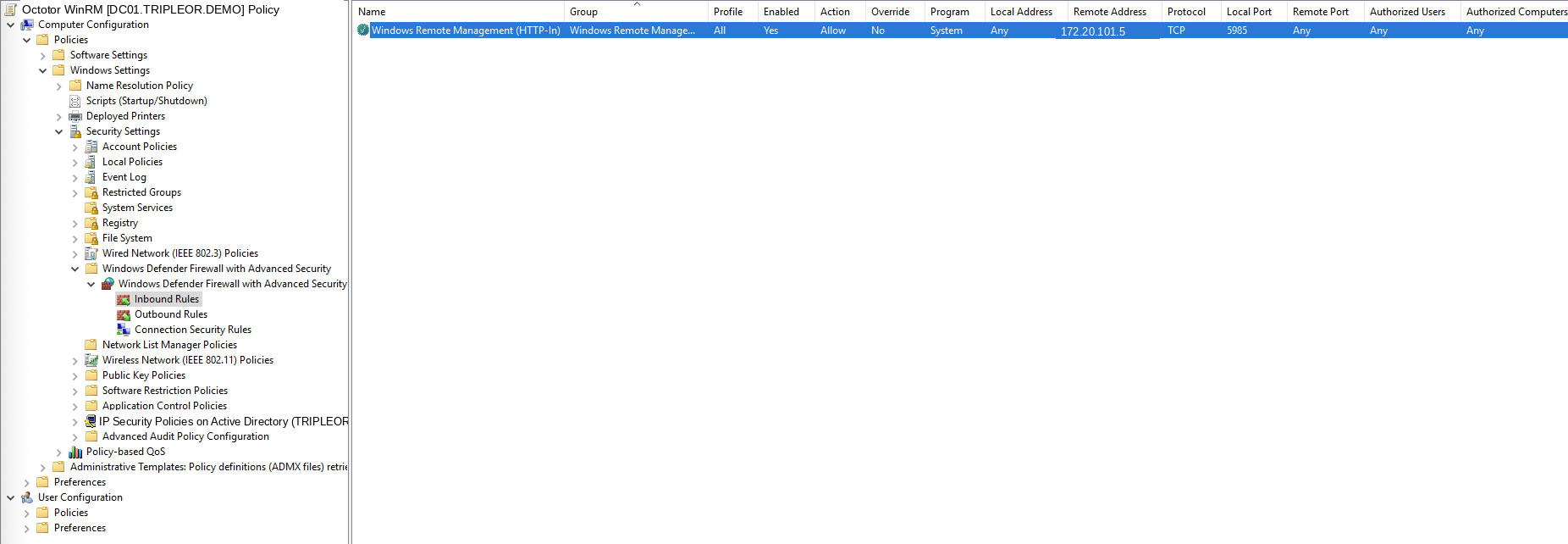
The Inbound Rules list showing the Windows Remote Management (HTTP-In) rule: Allow, TCP local port 5985, remote address limited to the Octotor server
The finished firewall rule. Windows Remote Management (HTTP-In) — Action Allow, Protocol TCP, Local Port 5985, and Remote Address limited to the Octotor server (172.20.101.5 in the example). Any other machine that tries this port is refused.

3Allow remote management through WinRM

In the editor, walk the tree to the WinRM Service folder:
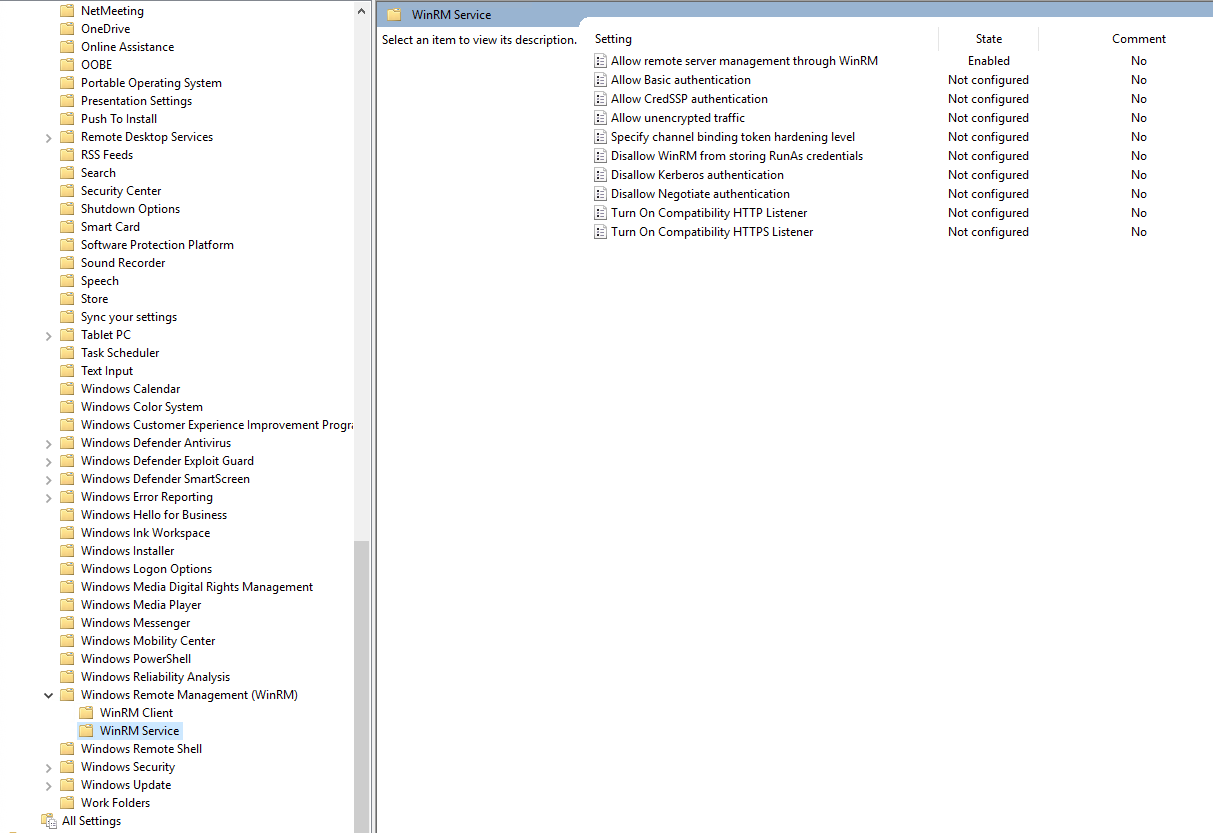
Computer Configuration → Policies → Administrative Templates → Windows Components → Windows Remote Management (WinRM) → WinRM Service
The WinRM Service folder in the Group Policy editor, with Allow remote server management through WinRM set to Enabled
The WinRM Service settings. One setting is changed — Allow remote server management through WinRM is Enabled. Every other setting in this folder stays Not configured.

Double-click Allow remote server management through WinRM, select Enabled, and put * in the IPv4 filter field — that tells the service to listen on the machine's addresses. Leave the IPv6 filter empty unless you use IPv6. Click OK.
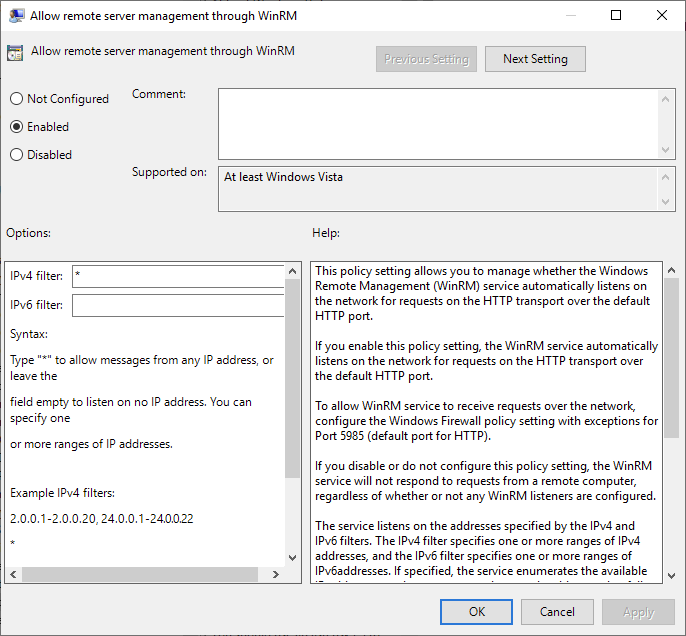
The Allow remote server management through WinRM dialog: Enabled, IPv4 filter set to *
The setting's dialog. Enabled is selected and the IPv4 filter is *. The firewall rule from Step 2 is what limits who may actually connect.

4Trust the Octotor server

The Trusted Hosts setting tells the machines which remote-management hosts they trust when a connection is made by IP address. Add your Octotor server's IP address here so the machines accept its connections:
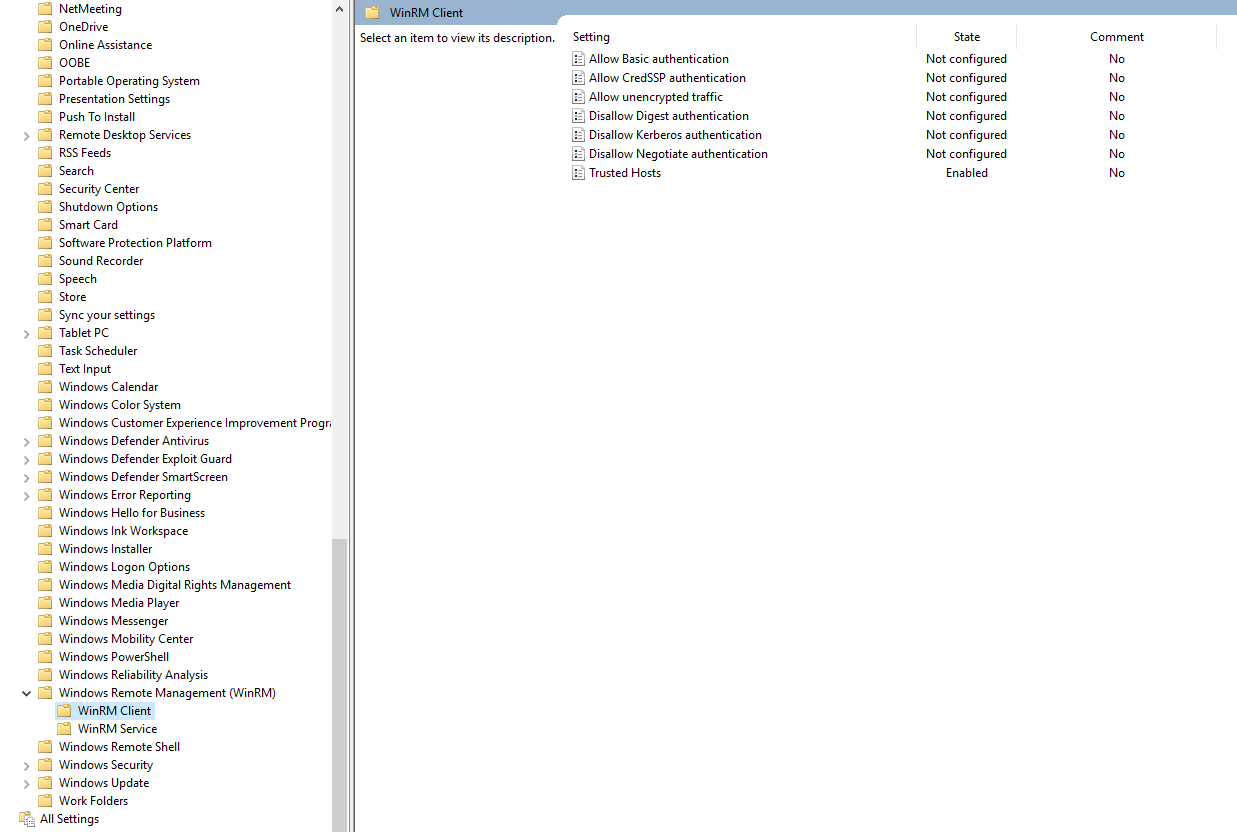
Computer Configuration → Policies → Administrative Templates → Windows Components → Windows Remote Management (WinRM) → WinRM Client
The WinRM Client folder in the Group Policy editor, with Trusted Hosts set to Enabled
The WinRM Client settings. Trusted Hosts is Enabled; everything else stays Not configured.

Double-click Trusted Hosts, select Enabled, and enter your Octotor server's IP address in the TrustedHostsList field. To list more than one address, separate them with commas. Click OK.
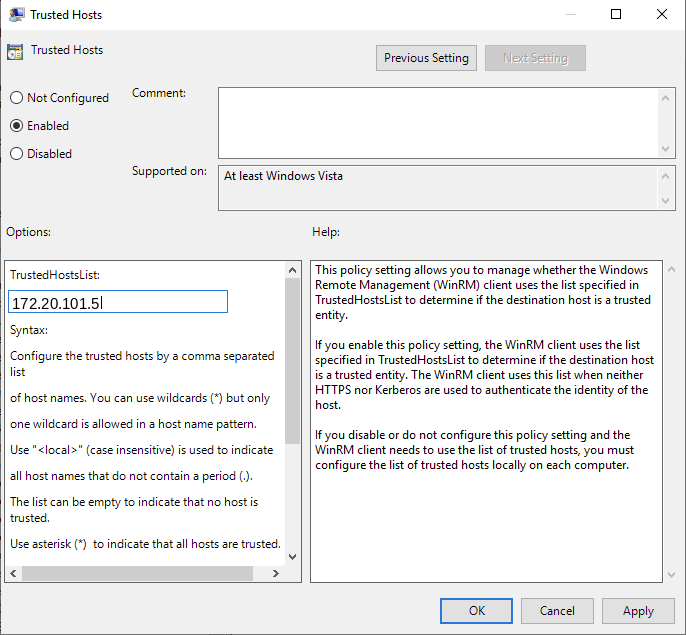
The Trusted Hosts dialog: Enabled, with the Octotor server IP in the TrustedHostsList field
The Trusted Hosts dialog. Enabled, with the Octotor server's IP address in the TrustedHostsList field (172.20.101.5 in the example).

5Start the WinRM service automatically

The service must be running before Octotor can connect. A Services preference item starts it on every machine and keeps it set to start on boot:

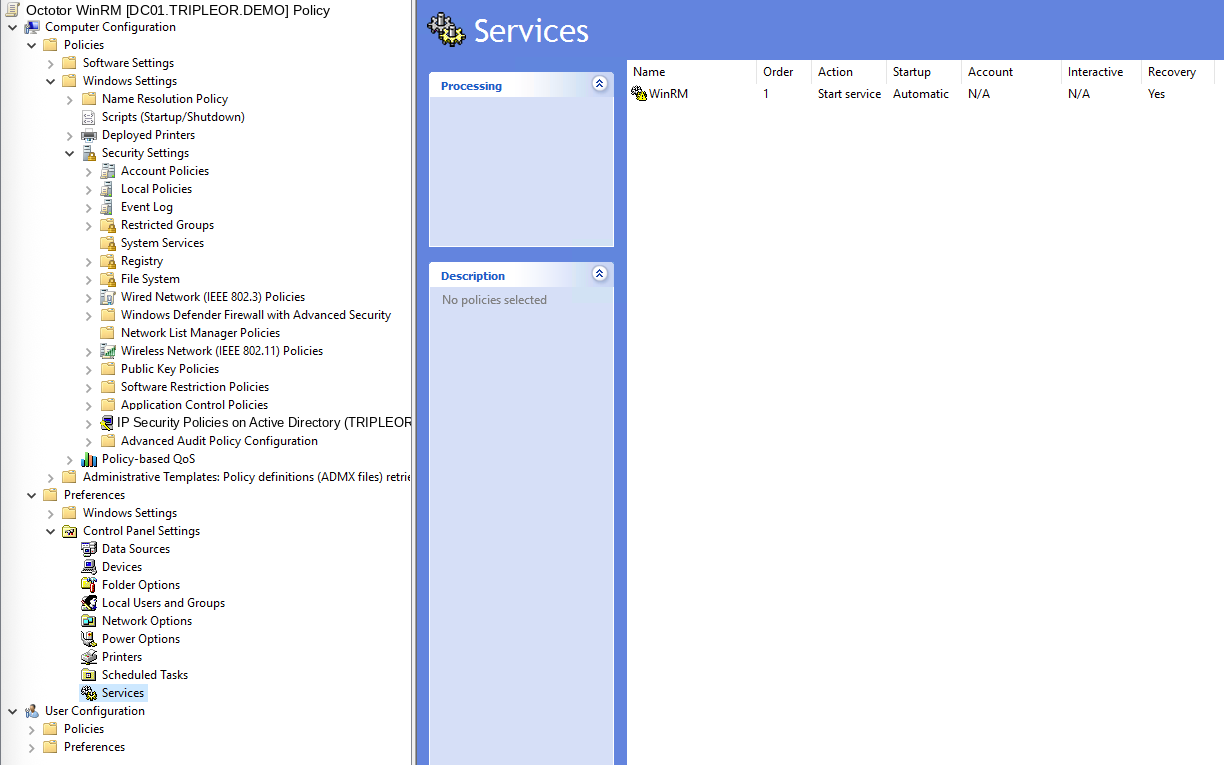
Computer Configuration → Preferences → Control Panel Settings → Services

Right-click ServicesNewService.

The Services preference list with one entry: WinRM, startup Automatic, action Start service
The Services preference item. One entry — service WinRM, Startup Automatic, Action Start service.

In the properties window: Startup Automatic, Service name WinRM, Service action Start service. Leave Log on as on No change. Click OK.
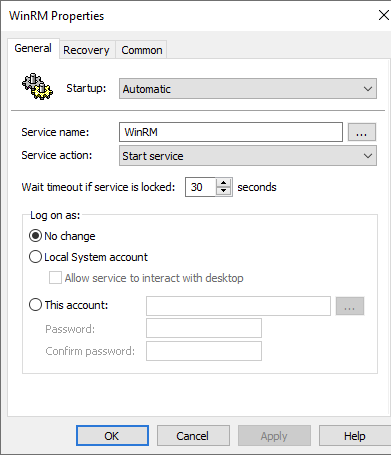
The WinRM service properties dialog: Startup Automatic, Service name WinRM, Service action Start service
The service properties. Startup Automatic, service name WinRM, action Start service, log-on unchanged.

When it takes effect

Domain computers pick the policy up at their next Group Policy refresh — within about 90 minutes, or at the next reboot. To apply it to one test machine right away, run gpupdate /force on that machine.

If the Octotor credential is not an administrator: WinRM only accepts administrators by default. If the Windows credential you give Octotor is not a local administrator or domain administrator account, add that user to the built-in Remote Management Users group on the machines — otherwise the connection is refused even though everything above is configured correctly.
Done when: a computer that received the policy passes the chain check — run uptime.ps1 against it from Octotor (Setup Guide, Step 10) and the output ends with the success banner.

Test-only: enable WinRM with one command

For a quick test on a single machine, open PowerShell as Administrator on that machine and run:

PS>Enable-PSRemoting -Force

What you should see: WinRM is configured and started; several confirmation lines.

Test only. This command enables WinRM with default settings and opens the firewall wider than the GPO does. For production, use the GPO in this guide — scoped firewall, automatic service start, and one place to manage it all.
Part of the Setup Guide. This page is part of the Octotor Setup Guide.